Your best social content usually starts in Canva — and then comes the tedious part: exporting the file, finding it in your downloads folder, and re-uploading it to your publishing tool. We just deleted that step.
SND’s new Canva Integration lets you pull designs straight from your Canva Library into a post, without a single download or upload. Sign in to Canva once, browse your designs right inside the SND post composer, and attach the one you want. That’s it.
Why you’ll love it
No more download-and-re-upload. Designs import directly as ready-to-post images, so your workflow stays in one place. Fewer clicks, fewer stray files, less time hunting through folders.
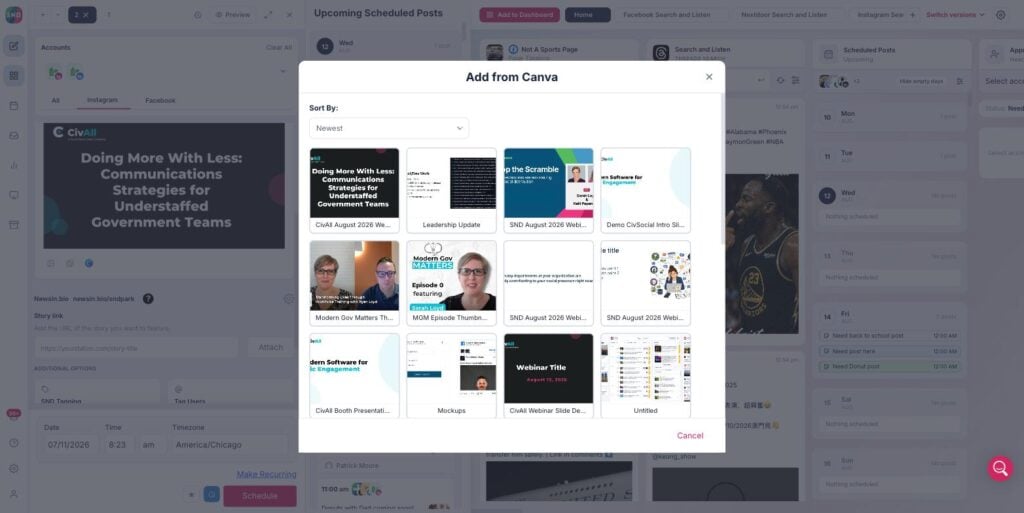
Your whole library, always current. Browse your Canva designs from inside the composer and sort by Newest, Oldest, or Design Name to find the right graphic fast. Updated a design in Canva? Grab the latest version the next time you post.
How it works
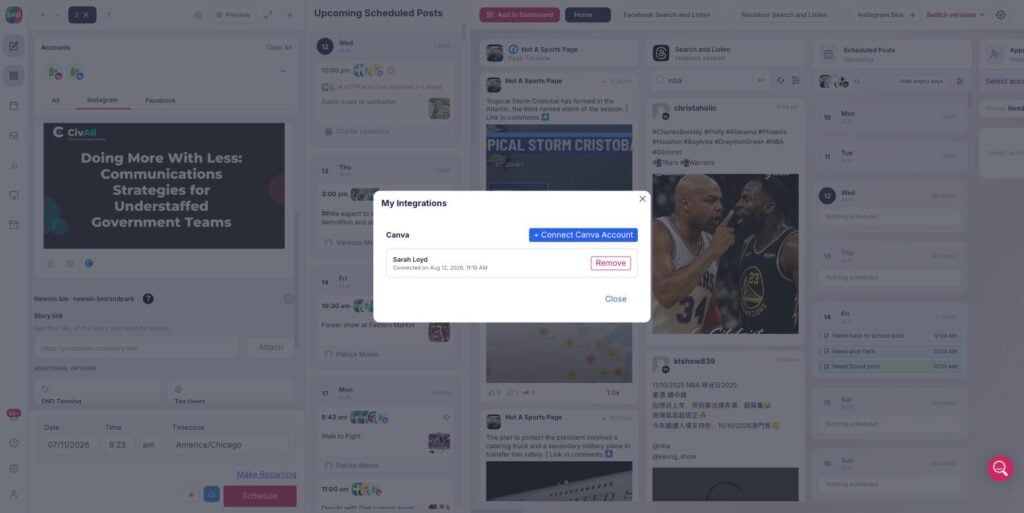
- Connect your account. Open My Integrations from your profile menu and click Connect Canva Account. Sign in to Canva, and you’re linked.
2. Browse from the composer. When you’re building a post, click the Canva icon in the media toolbar to open Add from Canva.

3. Pick and post. Choose your design, and SND imports it as a finished image — ready to schedule and publish across your networks
Ready to try it?
Head to My Integrations to connect your Canva account and start pulling designs into your posts today. Beautiful graphics, straight from Canva to your audience. That’s the SND Canva Integration.
Need a quick walkthrough? Don’t hesitate to get in touch with our Client Success Team: support@socialnewsdesk.com.