The workaround has always been clunky – scheduling a comment one minute after the post goes out and hoping it fires on time. That changes today. SND now handles the whole process automatically with a new Link in Comment workflow built directly into the Post Composer.
Why Link in Comment?
Facebook’s algorithm has long favored posts that keep users on the platform. Posts with outbound links in the body tend to get less reach than image posts or text-only posts. The Link in Comment strategy lets you have it both ways: publish a clean image post that performs well in the feed, then drop the article link into the first comment immediately after it goes live – driving traffic without sacrificing reach.
The problem was always the execution. Manually adding a comment after publishing is easy to forget, and scheduled comments are an extra step with their own timing risks. SND’s new feature eliminates both problems.
How It Works
1. Select Your Facebook Page(s)
Open the Post Composer and select one or more Facebook Pages as your destination. The Link in Comment feature is available anytime a Facebook Page is selected for your post.
2. Add Your Link
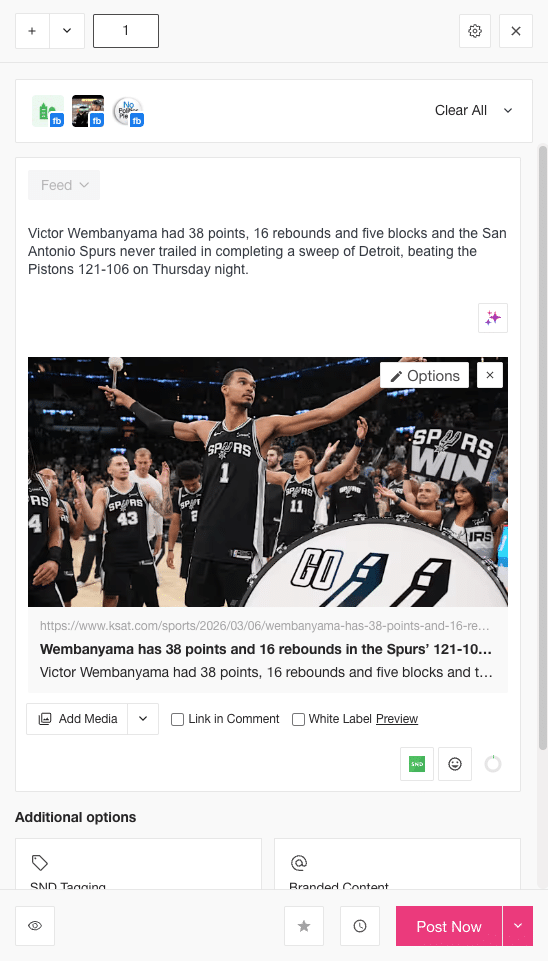
Paste your article URL into the post text box or the URL field as you normally would. The link will attach as a preview card as usual.
3. Check “Link in Comment”
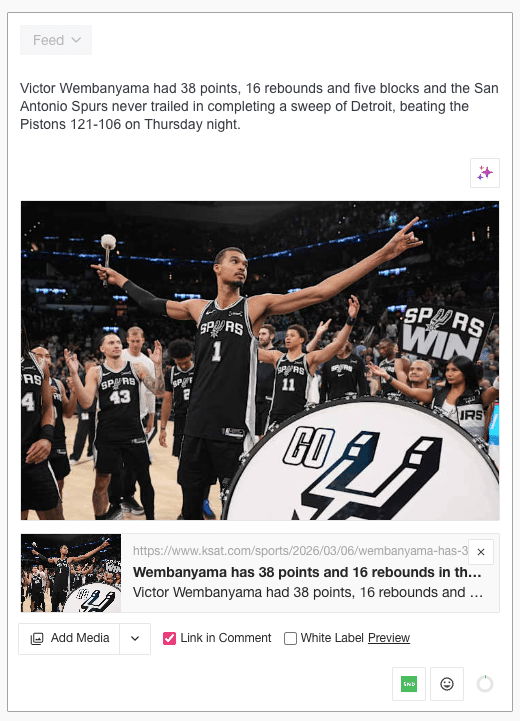
Here’s where the magic happens. Check the Link in Comment checkbox, and SND will automatically:
- Scrape the
og:imagefrom the linked page - Convert your post into an image post using that image
- Move the link preview below the image, where it will appear as the first comment after publishing
You can swap out the scraped image for a different one, or remove it entirely if you’d prefer a text-only post.
4. Add a Call to Action
Don’t forget to tell your audience where the link is! Since the URL won’t appear in the post body, include a line in your post text directing people to the comments – something like “Read all about it at the link in the comments.”
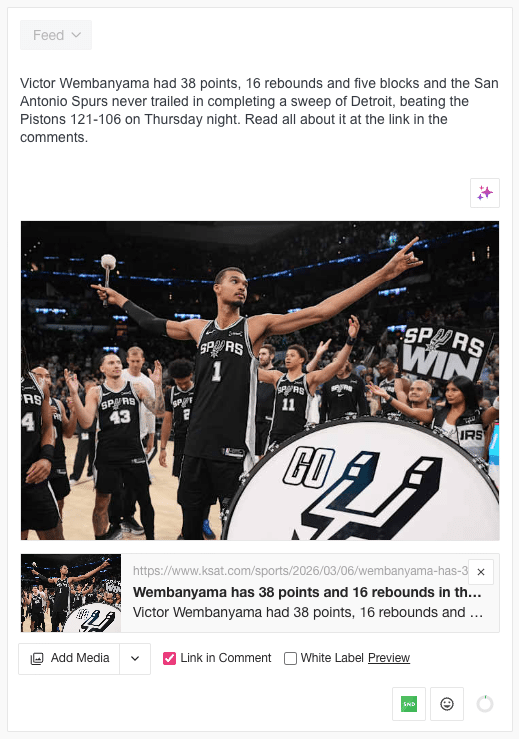
5. Publish – SND Handles the Rest
Hit Post Now (or schedule it). As soon as the post goes live, SND automatically drops the link into the first comment. No scheduled comments. No manual follow-up. No missed links.

What This Looks Like in Post Composer
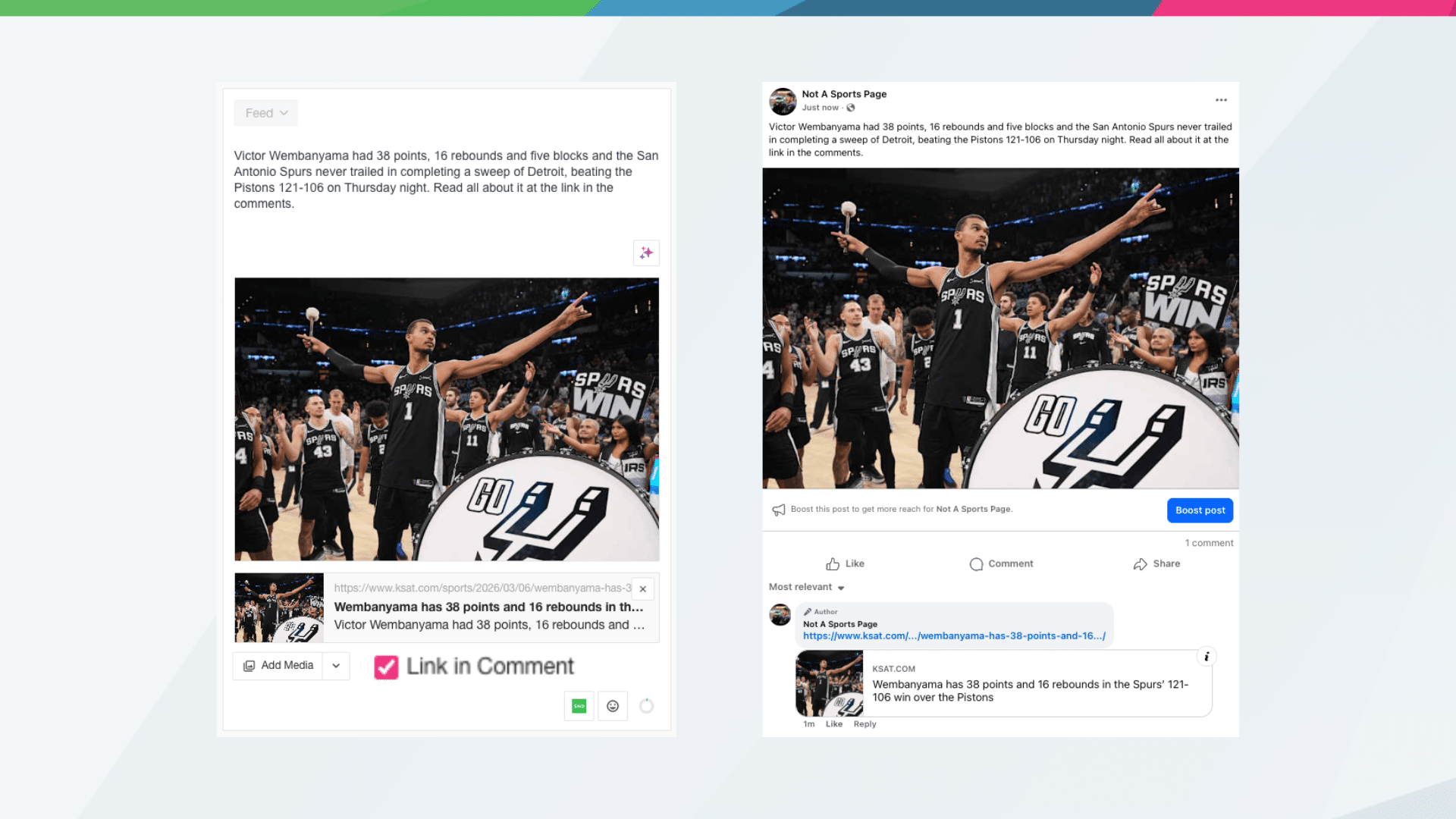
When you check Link in Comment, the Post Composer updates in real time. The link preview shifts below the image, and a checkmark confirms the feature is active. The final post looks like a clean image post in the feed – with the article link waiting in the comments right where you want it.
Tips for Getting the Most Out of It
- Always include a CTA in your post copy. Readers won’t know to look in the comments unless you tell them. Even a simple “Link in comments!” goes a long way.
- Review the scraped image. The
og:imagepulled from your article is usually the right choice, but you can replace it with a custom image if needed – or remove it for a text-only post. - Use it across multiple Pages at once. If you’re publishing to several Facebook Pages in a single composer session, Link in Comment applies to all of them simultaneously.
The Link in Comment workflow is available now in the SND Post Composer. Give it a try on your next Facebook post and see the difference a cleaner feed presence can make.